Home /Project Item Template
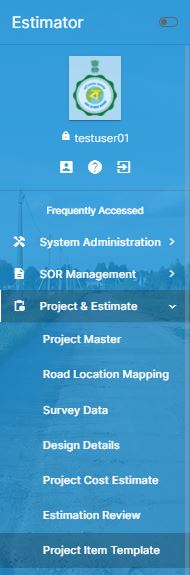
Project Item TemplateHelp Portal
Project Item Template
A "Project Item Template" in road estimate software is a predefined framework used to standardize and streamline the creation of project estimates. It typically includes a set of items, tasks, or components that are commonly required in road construction projects. The template ensures consistency, reduces the time needed to set up new estimates, and allows for easier updates and modifications by predefining quantities, costs, and descriptions for each item. This is particularly useful for repetitive tasks or similar project types, helping project managers maintain accuracy and efficiency.
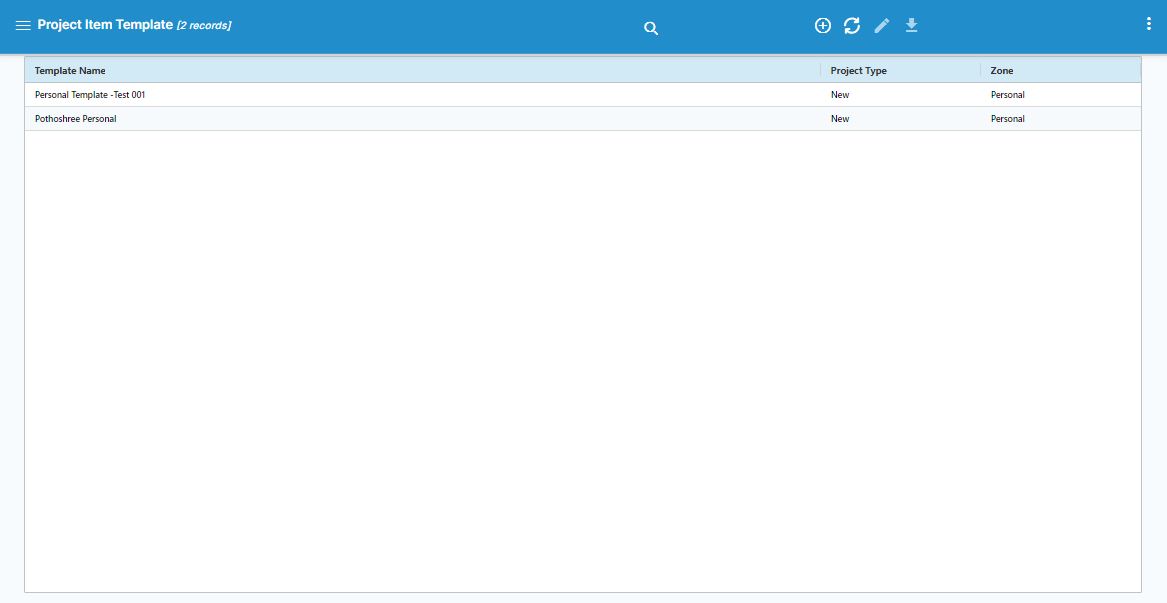
Project Item Template listing Screen
The "Project Item Template" screen in road estimate software is a user interface where predefined templates for road construction projects are displayed and managed. This screen typically includes a list of all available templates, each representing a set of standardized items or tasks commonly used in road projects.
In road estimate software, the "Project Cost Item Template" is categorized into three distinct types: New, Upgradation, and Maintenance. Each type serves a specific purpose in the road construction and management lifecycle:
1. New Project Cost Item Template:
- Purpose: This template is used for projects involving the construction of entirely new roads or infrastructure. It includes items and tasks required for building a road from scratch.
- Components: The template might include tasks like land preparation, earthwork, foundation laying, pavement construction, drainage systems, and road markings. It typically covers all phases from site clearance to final inspection.
- Costing: Items in this template often have higher costs associated with them, as they involve extensive material, labor, and time.
2. Upgradation Project Cost Item Template:
- Purpose: This template is designed for projects that involve upgrading or improving existing roads. This could include widening, strengthening, or adding new features to existing infrastructure.
- Components: It might cover tasks such as pavement resurfacing, lane addition, upgrading drainage systems, enhancing safety features like guardrails or traffic signals, and integrating new technologies.
- Costing: The cost items here are typically focused on enhancement and improvement, which may involve partial demolition, material reinforcement, and new installations.
This combination of automated and manual processes ensures a comprehensive and accurate road survey, with both geospatial data and visual documentation.
3. Maintenance Project Cost Item Template:
- Purpose: This template is tailored for ongoing maintenance and repair of existing roads to ensure they remain in good condition. It is used for routine upkeep as well as reactive repairs.
- Components: Tasks may include pothole filling, crack sealing, repainting road markings, repairing drainage systems, and regular inspections. It also covers emergency repairs after damage due to weather or accidents.
- Costing: Items in this template generally involve lower costs compared to new construction or upgradation, as they are focused on maintaining rather than building or enhancing.
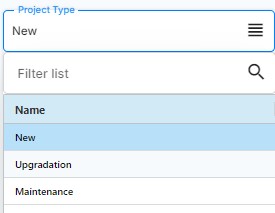
These templates allow for efficient and accurate cost estimation based on the specific nature of the road project, ensuring that all relevant tasks and materials are accounted for according to the project's scope and objectives.
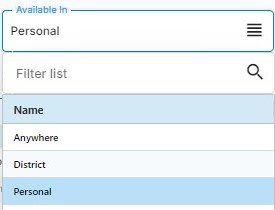
In road estimate software, projects can be categorized into three types: Personal, District-wise, and Anywhere. Each type reflects the scope and accessibility of the project data:
1. Personal Projects:
- Purpose: These projects are individual or private projects created and managed by a single user. They are not shared with others and are typically used for personal tasks, small-scale road projects, or practice scenarios.
- Accessibility: Only the creator or owner of the project has access to it. It is stored in the user's private workspace.
- Use Case: Ideal for solo work, preliminary drafts, or projects that do not require collaboration or regional alignment.
2. District-wise Projects:
- Purpose: These projects are organized and managed within a specific district or administrative area. They are designed for use by multiple users within that district, ensuring that all work is aligned with local regulations, standards, and requirements.
- Accessibility: Accessible to all authorized users within the designated district. It enables collaboration among district-level teams and ensures consistency in project execution across the district.
- Use Case: Suitable for official road construction, maintenance, or upgradation projects that fall under district jurisdiction, allowing for region-specific planning and resource allocation.
This combination of automated and manual processes ensures a comprehensive and accurate road survey, with both geospatial data and visual documentation.
3. Anywhere Projects:
- Purpose: These projects are not restricted to a specific geographical area or user group. They are accessible from any location and can be used for projects that span multiple regions or are managed by a dispersed team.
- Accessibility: Open to authorized users from any location, making it versatile for projects that require cross-district or even national coordination.
- Use Case: Best for large-scale projects that involve multiple districts, require broader collaboration, or are managed by a central authority overseeing various locations.
This categorization helps users manage and access projects according to their scope and the required level of collaboration, ensuring that the right people have the right access to the appropriate project data.
Project Cost Item Template selecting item:
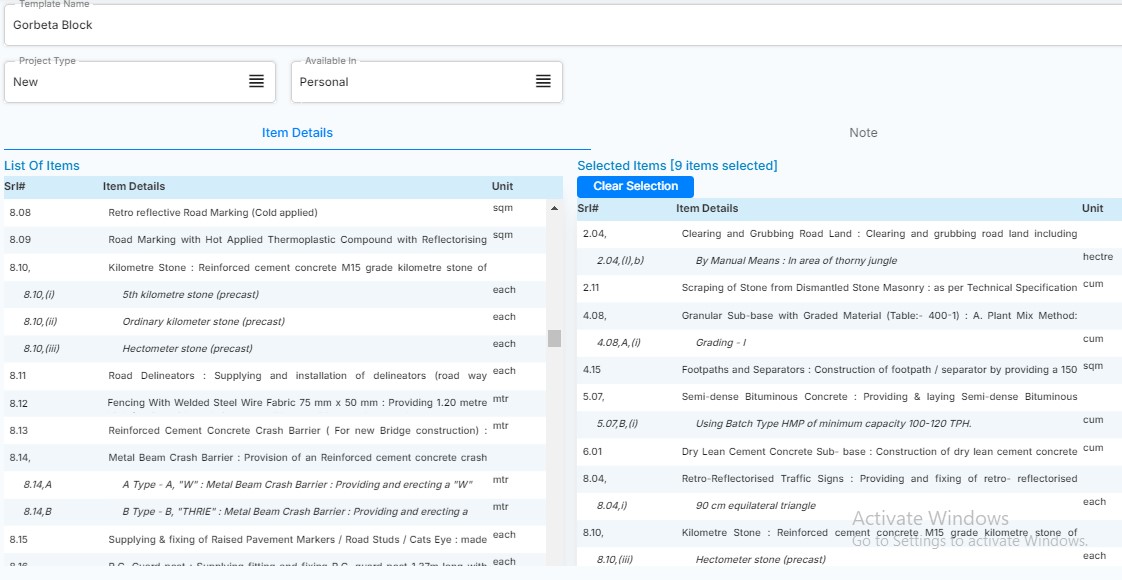
When creating an item cost template in the road estimate software, the process involves selecting items from a predefined list and managing them in a structured manner. The interface is designed to be user-friendly, with features that allow for easy selection, deselection, and note-taking. Here’s how the process works:
Creating an Item Cost Template:
- List of Items:
- Selecting Items:
- Selected Items Column:
- Clearing Items:
This column displays all available items that can be included in the cost template. Each item represents a specific task, material, or component related to road construction or maintenance.
To add an item to the cost template, you navigate to the "List of Items" column and locate the desired item.
Double-Click to Transfer: Simply double-click on the item in the "List of Items" column. This action will transfer the item to the "Selected Items" column, indicating that it has been chosen for inclusion in the template.
This column shows all the items that have been selected for the current cost template. It provides a clear view of what will be included in the final estimate.
If you need to remove an item from the "Selected Items" column, you can do so by double-clicking on that specific item within the "Selected Items" list.
Double-Click to Clear: The item will be removed from the "Selected Items" column and will no longer be part of the cost template.
Note Tab
- Adding Notes:
- Review and Reference:
The interface includes a separate tab labelled "Note." This tab is available for you to add any additional notes or comments related to the items or the overall cost template.
Usage: You can use the "Note" tab to document important details, special instructions, or justifications for including certain items. This is especially useful for keeping track of specific project requirements or conditions that might affect the cost or selection of items.
The notes you add in the "Note" tab can be reviewed at any time and serve as a reference for anyone who might be using or reviewing the cost template in the future.
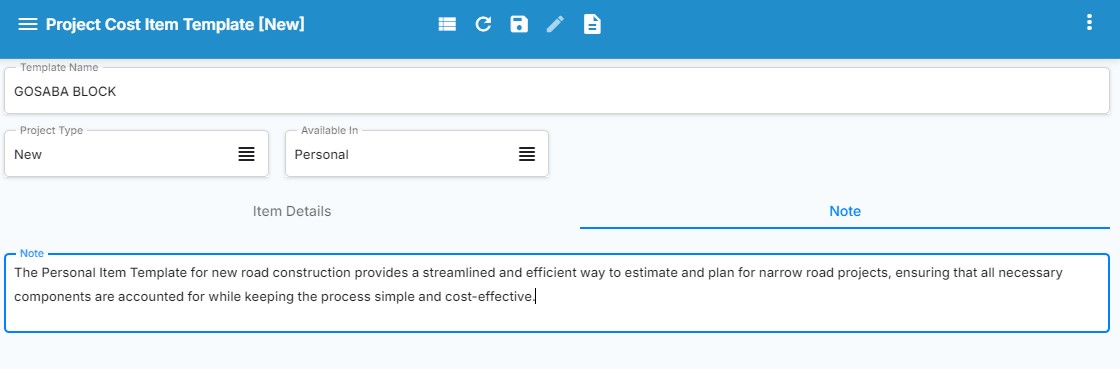
This process allows you to create detailed and customized item cost templates efficiently, with easy item management and the ability to document important information alongside your selections. The inclusion of the "Note" tab ensures that all relevant details are captured and can be easily referenced later.